article in progress
Wednesday, December 16, 2015

Tuesday, December 15, 2015
OLE DB Source to extract data from MS Office Excel 2007 and Access DB in SSIS
To load data from a data source that uses Microsoft Office Excel 2007, use an OLE DB source. We cannot use an Excel source to load data from an Excel 2007 data source.
To load data from a data source that uses Microsoft Office Excel 2003 or earlier, use an Excel source.
The data provider that the connection uses depends on the version of the Excel file format:
For Excel 2003 or earlier format, the Excel connection manager, uses the Microsoft Jet OLE DB Provider.
For Excel 2007 or later format, the package requires the OLE DB provider for the Microsoft Office 12.0 Access Database Engine.
On a 64-bit computer, we must run packages that connect to Microsoft Excel data sources in 32-bit mode. Both the Microsoft Jet OLE DB Provider and the OLE DB provider for the Microsoft Office 12.0 Access Database Engine are only available in 32-bit versions.
Connect to an Access Database
Requires an OLE DB connection manager and a data provider.
The data provider depends on the version of Access that created the data source:
For Access 2003 and earlier, the package requires the Microsoft Jet OLE DB Provider.
For Access 2007, the package requires the OLE DB provider for the Microsoft Office 12.0 Access Database Engine.
On a 64-bit computer, we must run packages that connect to Microsoft Access data sources in 32-bit mode. Both the Microsoft Jet OLE DB Provider and the OLE DB provider for the Microsoft Office 12.0 Access Database Engine are only available in 32-bit versions.
Please feel free to correct me by commenting your suggestions and feedback.
Excel Source
The Excel source extracts data from worksheets or ranges in Microsoft Excel workbooks. The Excel source provides four different data access modes for extracting data:
- A table or view.
- A table or view specified in a variable.
- The results of an SQL statement which can be parameterized
- The results of an SQL statement stored in a variable.
In Excel, a worksheet or range is the equivalent of a table or view. Worksheets are identified by the $ sign appended to the worksheet name, such as Sheet1$ and named ranges are identified by the absence of the $ sign, such as MyRange.
The Excel source uses an Excel connection manager to connect to a data source, and the connection manager specifies the workbook file to use.
The Excel source has one regular output and one error output.
The Excel Connection Manager uses the Microsoft OLE DB Provider for Jet 4.0 and its supporting Excel ISAM (Indexed Sequential Access Method) driver to connect and read and write data to Excel data sources.
In a SQL statement, worksheet name must be delimited as [Sheet1$] to avoid a syntax error caused by the $ sign.
Integration Services maps the Excel data types as follows:
Numeric – double-precision float (DT_R8)
Currency – (DT_CY)
Boolean – (DT_BOOL)
Date/time – (DT_DATE)
String – Unicode string, length 255 (DT_WSTR)
Memo – Unicode text stream (DT_NTEXT)
Some Excel Source properties:
AccessMode: The possible values are Open Rowset, Open Rowset from Variable, SQL Command, and SQL Command from Variable. The default value is Open Rowset.
CommandTimeout: The number of seconds before a command times out. A value of 0 indicates an infinite time-out. This property is not available in the Excel Source Editor, but can be set by using the Advanced Editor.
OpenRowset: The name of the database object that is used to open a rowset.
OpenRowsetVariable: The variable that contains the name of the database object that is used to open a rowset.
ParameterMapping: The mapping from parameters in the SQL command to variables.
SqlCommand: The SQL command to be executed.
SqlCommandVariable: The variable that contains the SQL command to be executed.
The following example uses Excel source. In this example, we will copy data from Excel source containing data from Employee table into Employee_new table. Before moving ahead with example, refer these earlier articles:
Let’s first TRUNCATE or DELETE data from Employee_new table that was created in referenced articles above.
We require to copy data from Employee table into new excel file. This can be done in many possible ways. Few options are listed below:
a. We can copy and paste the data from Employee table into excel file.
b. We can use import and export feature.
For our demonstration, we have copied data from Employee table with headers to a new excel file and renamed the file as ExcelSource. Also, we have selected first 10 rows as range in excel and named it as First10Rows.
Open SSISStudy / SSISStudy2012 project created earlier. Open Source Explorer and right click on SSIS Packages and select New SSIS Package and rename it to ExcelSourceExample.
Drag and drop Data Flow Task into Control Flow area. Open Data Flow tab. Drag and drop Excel Source into Data Flow area.

 Edit and configure the EXCEL Source to copy data from excel file ExcelSource in AdventureWorks database.

 Click on New, this opens Excel Connection Manager
 Click on Browse, locate and select the ExcelSource file. Excel version refers to the file version of excel. The check mark on First row has column names indicates that the first row in the excel file indicates header. If clicked, the first row in the excel will be skipped as header columns. Click OK.
 Excel source can be queried in 4 different possible ways as specified by the Data Access mode:
 In Excel Source Editor, if one selects Table or view, it lists all the sheets and ranges in ExcelSource under Name of the Excel sheet. The range First10Rows that we created earlier is listed with all the sheets in ExcelSource.
 In Excel Source Editor, if one selects Table name or view name variable, the sheet name or range name in ExcelSource will be stored in the variable.


Right click on Data Flow area, select Variables
 Click on Add Variable.
 Create two String variables as follows:
Name: SheetName and RangeName – Variable name
Scope: Data Flow Task – Scope of the variable
Data Type: String – Data type of the variable
Value: Sheet1$ and First10Rows – Initial value for the variable, in this case the Sheet and range name. Sheet name should be postfixed with $.
 Edit Excel Source and select Table name or variable name under Data access mode. Under Variable name, select either SheetName or RangeName
 In Excel Source Editor, if one selects SQL command, they can write the statement to query the excel file. For our ExcelSource, we can write following queries to fetch either from the sheet or range as follows:
SELECT * FROM [Sheet1$]
SELECT * FROM [First10Rows]
 In Excel Source Editor, if one selects SQL command from variable, they can query the SQL statement assigned as a value to a variable.
Let’s create two string variables SheetQuery and RangeQuery and assign the following values:
Variable: SheetQuery, Value: SELECT * FROM [Sheet1$]
Variable: RangeQuery, Value: SELECT * FROM [First10Rows]
 Edit Excel Source, select SQL command from variable in Data access mode and RangeQuery or SheetQuery under Variable name.
 Whatever Data access mode is chosen, click Columns and then OK. Drag and drop OLE DB Destination. Connect Excel source with OLE DB Destination. Configure OLE DB Destination.
 Unlike in earlier examples, notice the yellow triangle with “!” sign. This indicates validation warnings which are not fatal and do not end package execution. Hover the mouse and we can read the warnings
 Execute the package by pressing F5. The package will result in error.
 So what are the errors if everything was so done correctly? Before proceeding, stop package execution. Now check the Execution Results tab. Scroll down till you see error description. The error description provides information about the columns and reasons for the package failure like “The value could not be converted because of a potential loss of data.”
 As mentioned earlier, in Excel source all string columns are interpreted as a character string of 255. Now as per our Employee_New definition, we have string columns with specified width. We cannot fit in data of 255 characters into a column of width 50. Hence the package execution is failing. To rectify this error, for now let’s convert the string columns to their respective column widths in table Employee_New. Also, let’s convert all other columns to their respective column types in Employee_new table. This can be done using a Data Conversion transformation. Drag and drop a Data Conversion transformation on the Data flow area.


Select the green arrow (path) between Excel Source and OLE DB Destination and press Delete button on the keyboard. Now select Excel Source and connect to Data Conversion.
 Edit the Data Conversion and check mark the Available Input Columns.
 Change all columns to their respective types and width in Employee_New table and click OK. Change GUID column to Unicode string [DT_WSTR] and width 255.
 Drag and drop Derived Column in Data Flow area. Connect Data Conversion to Derived Column.
 Right click and Edit Derived Column. Type (DT_GUID)("{" + rowguid + "}") in the Expression. The expression converts the rowguid column to UNIQUEIDENTIFIER type identifiable to SSIS.
 Click OK. Connect Derived Column and OLE DB Destination.
 Edit OLE DB Destination and select Mappings. Replace each mapping with its respective Copy of columnname and map rowguid to Derived Column output and click OK.

 Now press F5 and it should execute without any errors.


Click for NEXT article in the sequence.
Please feel free to correct me by commenting your suggestions and feedback.
ADO NET Source
The ADO NET source consumes data from a .NET provider. We configure the ADO NET source by providing the SQL statement that defines the result set. The ADO NET source uses an ADO.NET connection manager to connect to a data source, and the connection manager specifies the .NET provider.
The ADO NET source has one regular output and one error output.
Some important properties:
SqlCommand: The SQL statement that the ADO NET source uses to extract data.
AllowImplicitStringConversion: The default value is TRUE. A value that indicates whether the following occurs:
- No validation error occurs if there is a type mismatch between input column and output column for strings (DT_WSTR or DT_NTEXT).
- Implicit conversion of input columns to the string data type that the output column uses.
The output and the output columns of the ADO NET source have no custom properties.
The following example uses ADO NET source. In this example, like earlier we will copy data from Employee table into Employee_new table. Before moving ahead with example, refer these earlier articles:
Create a new SSIS project using BIDS / SSDT
Data Flow Task
Let’s first TRUNCATE or DELETE data from Employee_new table that was created in referenced articles above.
Open SSISStudy / SSISStudy2012 project created earlier. Open Source Explorer and right click on SSIS Packages and select New SSIS Package and rename it to ADONetSourceExample.
Drag and drop Data Flow Task into Control Flow area. Open Data Flow Tab. Drag and drop ADO NET Source into Data Flow area.


Edit and configure the ADO NET Source to copy data from Employee table in AdventureWorks database.


 Choose the data provider from among the list.


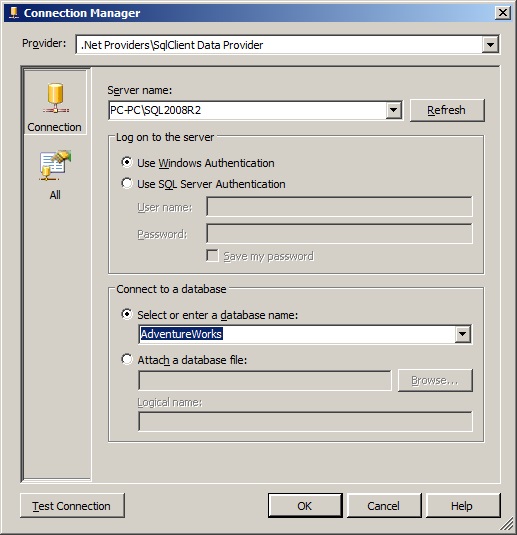

After testing the connection and when we reach back to ADO.NET Source Editor window, from Data access mode select Table or view/SQL command.


If Table or view, it allows user to select the table to get the data.
 If SQL Command, it allows user to write the SELECT query used to get the data.
 We can directly write SELECT query to fetch data in the SQL command text or click on Build Query to open Query Builder and build our query. Also we can click on Browse to select the .sql file which fetches the data from the required table or view.


Steps to use Query Builder
Click on Build Query
 Click on Add Table button and select Employee(HumanResources) table and click Add button.

 Click on Close button.
Click on * (All Columns), to select all columns from the table. Click OK.
 Returning back, whatever method we choose to use to get the source data, select Columns in ADO NET Source Editor.


Like in earlier examples, drag and drop an OLE DB Destination and connect ADO NET Source to OLE DB Destination. We might be required to edit and configure OLE DB Destination. This is because we have created ADO NET Connection Manager in this example and OLE DB Destination requires OLE DB Connection Manager.
 Press F5 to test this package.
Click for NEXT article in the sequence.
Please feel free to correct me by commenting your suggestions and feedback.
Sunday, December 13, 2015
Subscribe to:
Posts (Atom)